Windows & Mac
The quickest way to check whether a stream works. If it plays in VLC on a laptop, the problem on your TV is the TV.
Published 1 August 2026Edited 10 September 2026
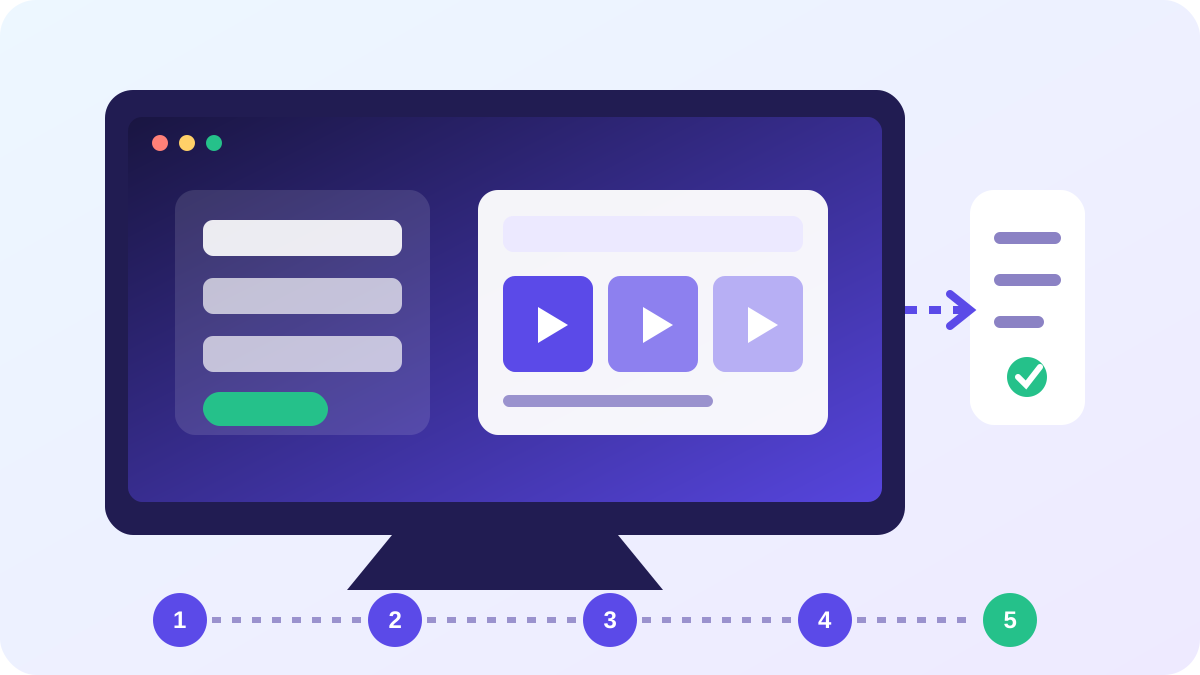
Five steps
Install VLC
Free from videolan.org for Windows and macOS. Nothing else needed.
Open a network stream
Media → Open Network Stream on Windows, File → Open Network on macOS.
Paste your M3U link
Use the M3U URL from your welcome email rather than the Xtream credentials. VLC reads playlists, not APIs.
Open the playlist view
Ctrl+L on Windows or Cmd+Option+P on macOS shows the full channel list.
Use Perfect Player for a guide
VLC has no EPG. Perfect Player on Windows gives a proper TV grid using the same credentials.
The full Windows & Mac walk-through
A laptop is the fastest way to answer the only question that matters when something is not working: is the problem the line or the device? Two minutes with a desktop player will tell you, and that makes this worth setting up even if you never intend to watch on a computer.
Use it as a diagnostic first
If a channel stutters on your television, open the same channel on a laptop on the same network. A clean picture on the laptop means the television or stick is the bottleneck, not your connection and not the feed. A stutter in both places points at the network or the source.
That one test removes most of the guesswork, and it is why it appears early in the buffering diagnostic. A general-purpose media player is enough for this; you do not need a dedicated IPTV application to run the check.
Pick the player for the job
| Use | Player type | Why |
|---|---|---|
| Checking a stream | General media player | Opens a raw address instantly, no setup |
| Actually watching | Dedicated IPTV player | Has a guide, categories and search |
| Casting to a TV | Either, over HDMI | A cable beats wireless mirroring every time |
A general player has no programme guide, no categories and no catch-up, so it is a poor daily driver. Keep it installed regardless, because it answers the diagnostic question faster than anything else.
Where a computer beats a streaming stick
- Ethernet is usually already there, which removes the most common cause of evening stutter.
- Far more processing power than any stick, so heavy guides and 4K feeds are not an issue.
- A keyboard makes entering a long password trivial instead of a five-minute exercise with a remote.
- You can have several windows open, which is genuinely useful across a weekend of fixtures.
The catch is obvious: a desk is not a sofa. If the computer is going to be the main way you watch, run an HDMI cable to the television and use it as a source. That is more reliable than any wireless mirroring option and it costs the price of a cable.
Two things specific to desktops
First, corporate and campus networks frequently block the ports these streams use. If a line works at home and fails at the office, the network is filtering it and nothing on your side will change that.
Second, some desktop players ask for a licence key or activation code of their own. That is the player's own commercial arrangement and has nothing to do with your subscription credentials. Do not enter your IPTV password into a licence field.
If it still will not play
Work through the buffering guide before contacting us. If every channel fails on every device, that is worth reporting rather than troubleshooting further.